Help Center › Administration and security › Create and manage branches
Several locations in one account: create a branch, assign customers and staff, and move users between branches.
Updated 25 Nov 2026 · Portal 9.34 · Administration and security · 4 min
In this article
- What you need branches for
- Creating a branch
- Assigning customers, staff and devices
- Moving users to another branch
Only relevant if you have several locations. If you only have one company, you do not need to do anything: your first branch is created automatically.
A branch brings together three things: your customers with their sites and checkpoints, your staff and your mobile devices. With several branches you can run Munich and Würzburg in one account, for example, each with its own customers and people.
Prerequisites
- You have access to the portal with permission for Master data.
- The first branch already exists, for new and existing customers alike.
Step 1: Open Branches
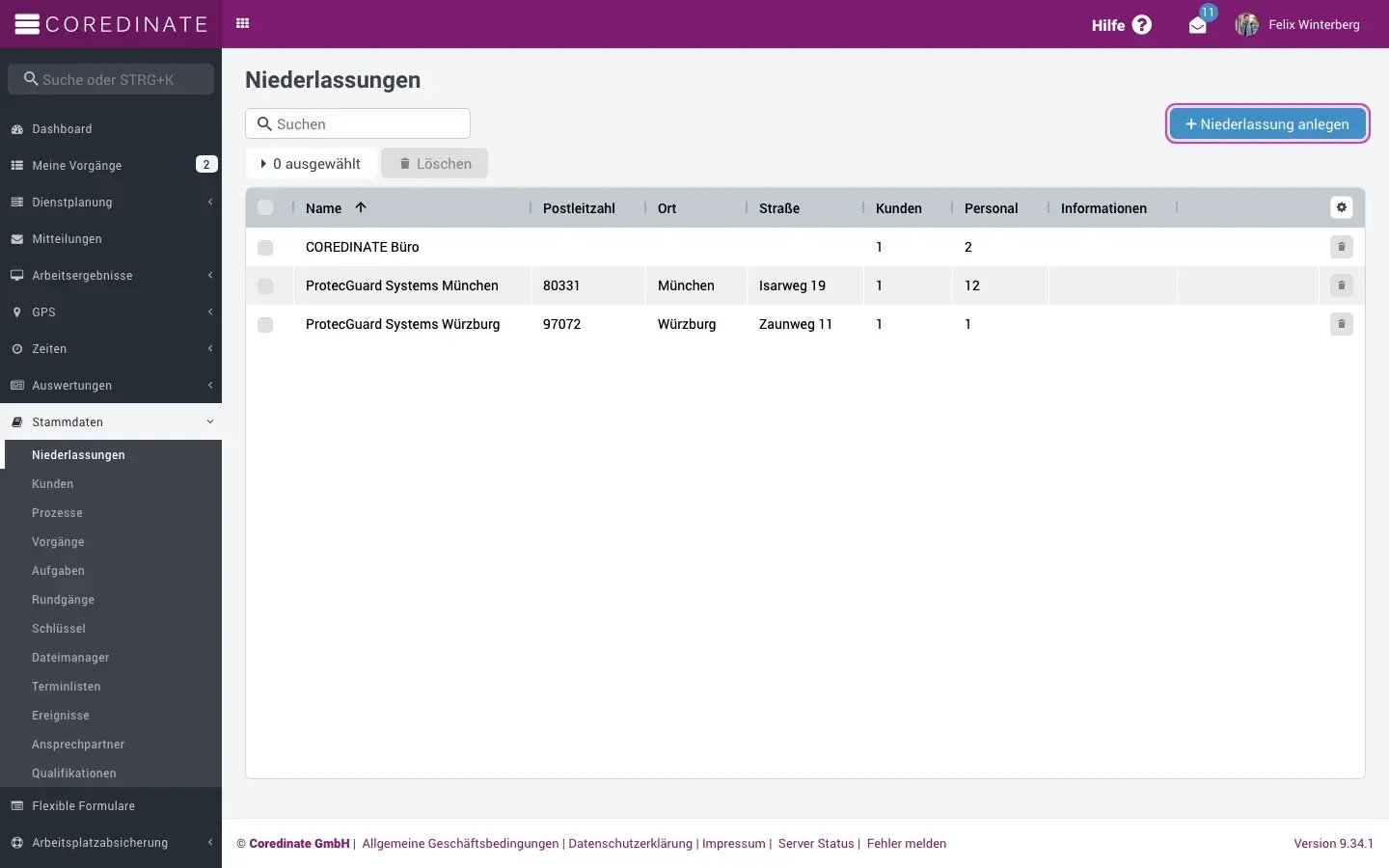
Open Master data and then Branches. The list shows the name, address and the number of assigned Customers and Staff. Click Create branch at the top right.
Step 2: Create a branch
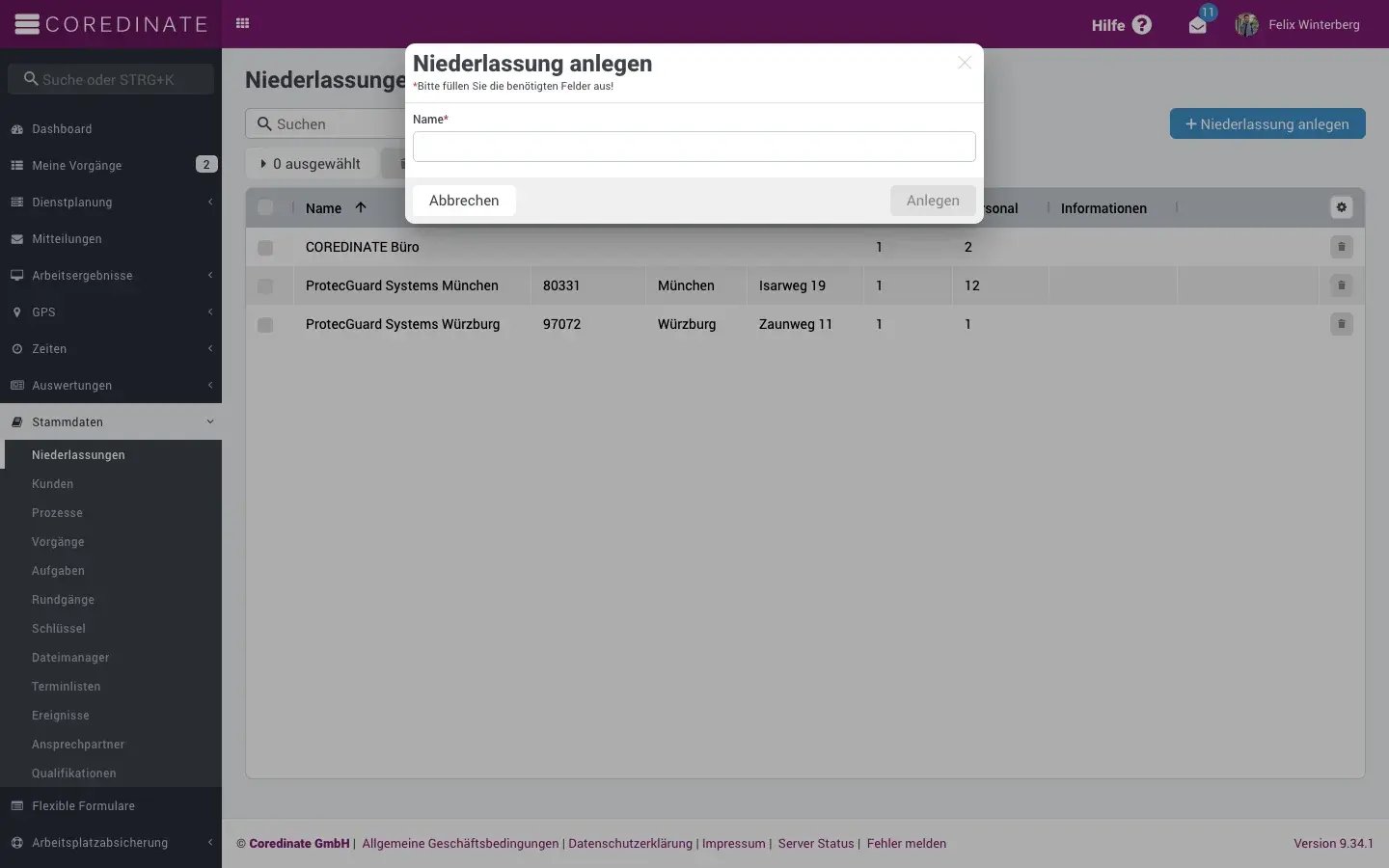
The dialog has only one mandatory field: the Name. Choose a name your people associate with the location, for example Würzburg. Click Create.
Step 3: Maintain details and assignments
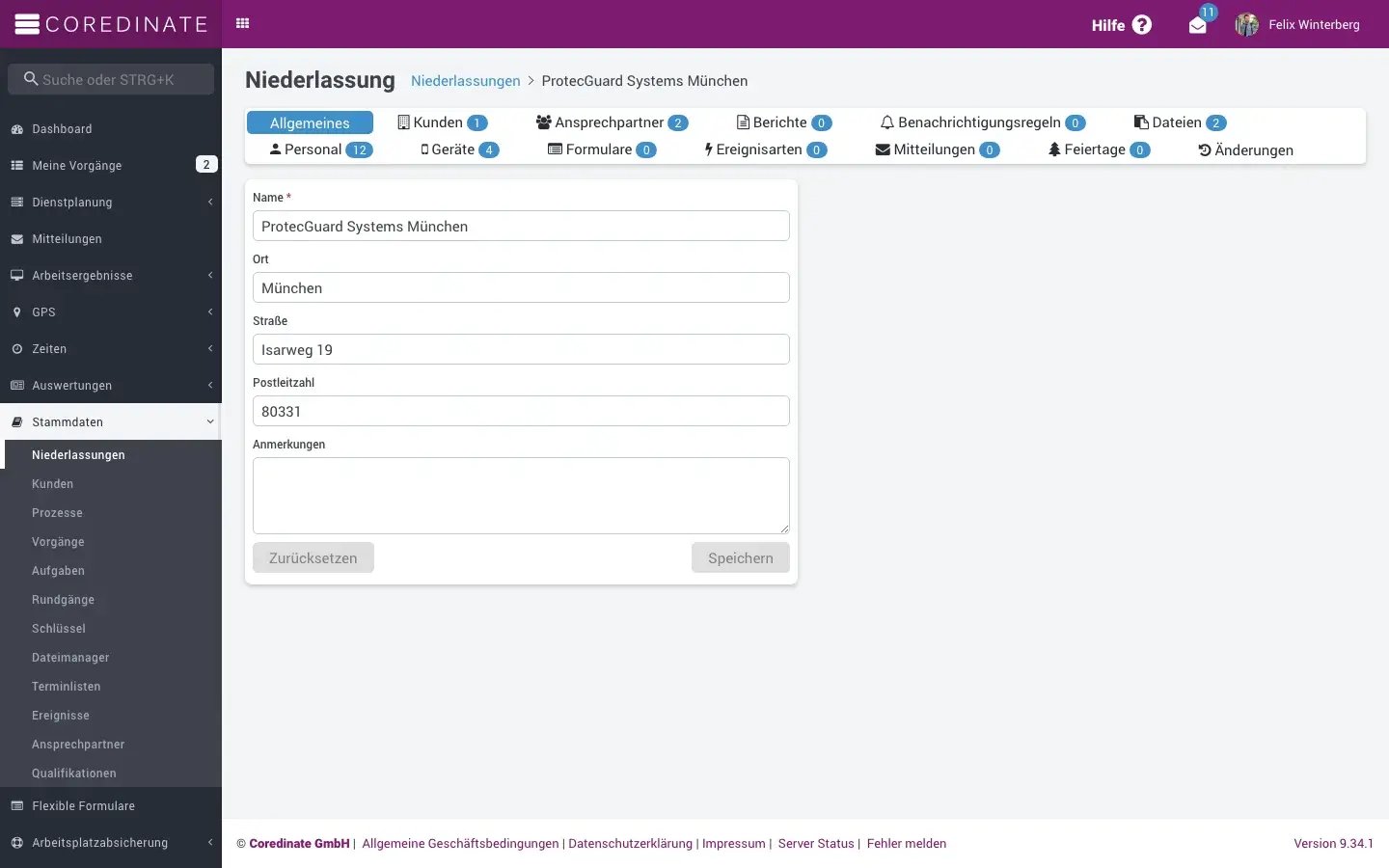
The detail page then opens. On the General tab you can optionally add City, Street, Postal Code (ZIP) and Notes and save with Save. The other tabs show what belongs to the branch: Customers, Contacts, Reports, Notification Rules, Files, Staff, Devices, Forms, Incident types, Memos and Public holidays.
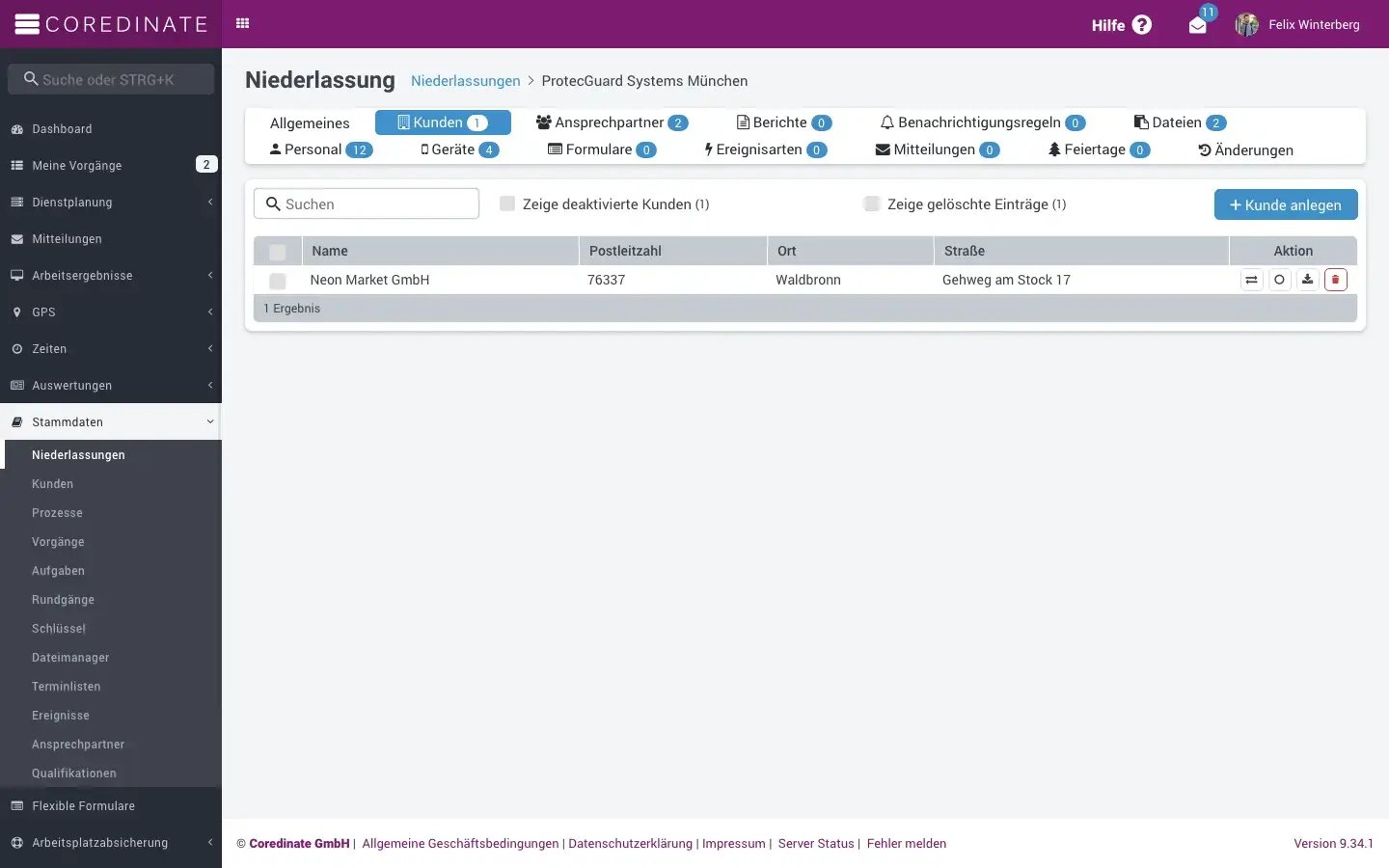
The Customers tab shows the branch's customers. Use Create customer to create a new one directly here, see Create your first customer.
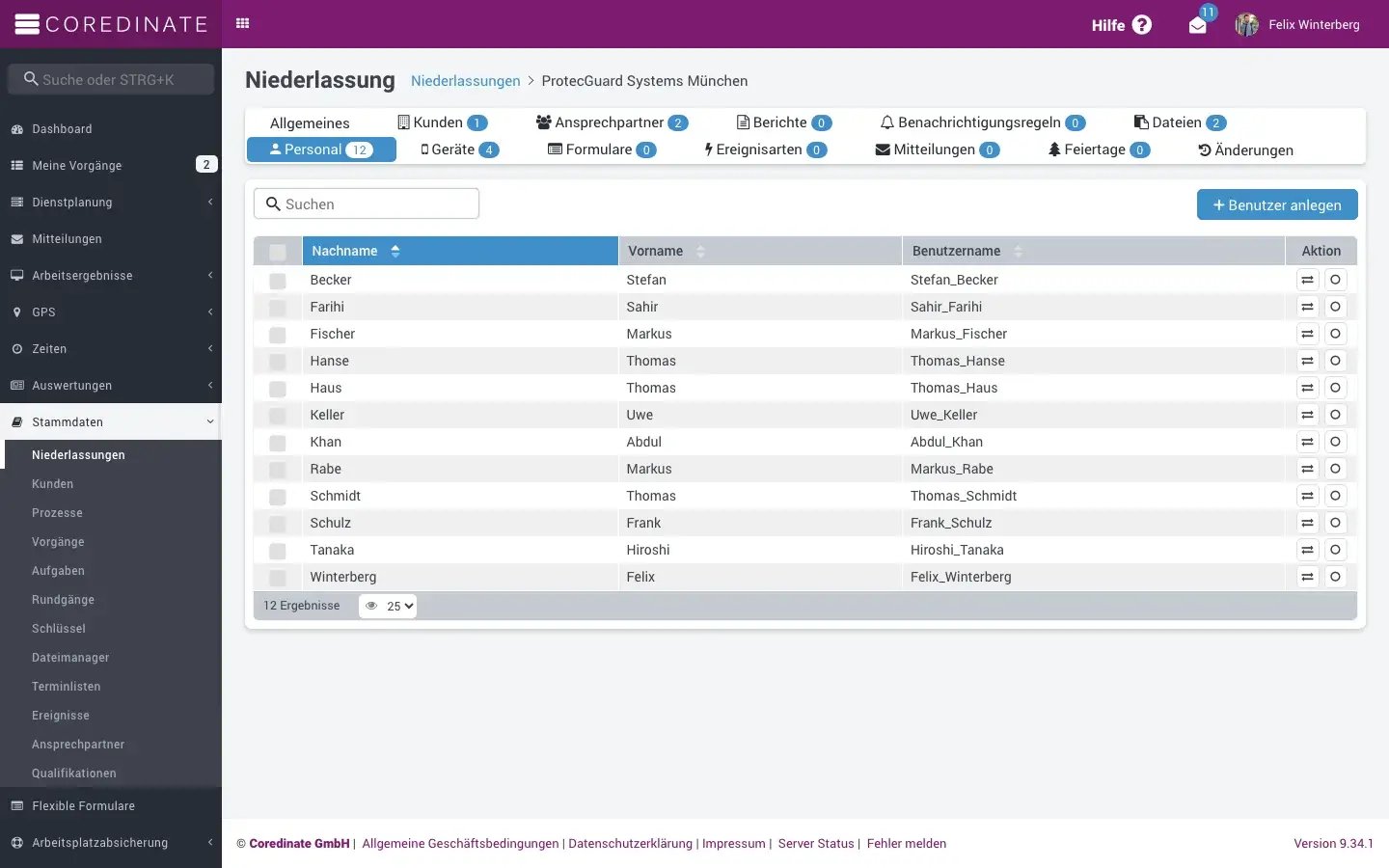
The Staff tab lists all users of this branch. Each user belongs to exactly one branch. Use Create user to add new people, see Create new users. Use the arrow icon in the Action column to assign a user to another branch.
The Devices tab shows the mobile devices that work with the branch, with Name, Assignments, Id, IMEI and Licence.
Good to know
- The Public holidays tab is useful for the roster and working times if your locations are in different regions.
- Users of a branch only see what they are responsible for. You set responsibilities on the user, see Create new users.
FAQ
Do I need a branch if we only have one location?
No. The first branch already exists and all data is attached to it. You do not need to set anything up.
Can a user work in two branches?
They belong to exactly one branch. For further sites and customers, give the user responsibilities.
How do I move a user?
Open the branch and the Staff tab, then click the arrow icon in the user's row.