Help Center › Tasks, events and forms › Document tasks in the portal
Record tasks as completed or not completed directly in the portal, with time, reason and form. Here is how to use Document task.
Updated 25 Nov 2026 · Portal 9.34 · Tasks, incidents and forms · 3 min
In this article
- When to document a task in the portal
- Choose the place of execution and the task
- Report a task as completed or not completed
- Complete or cache tasks with a form
Your employees normally complete tasks in the app. Sometimes, though, the work is done without a smartphone: the site manager has phoned in the meter reading, or the control room has carried out a check itself. To keep your records complete, document the task directly in the portal. It then appears like any other completion in Task completion, in the Daily Activity Reports and in reports.
Prerequisites
- The task has been created and assigned to a site. See Create a task.
- You have the Manage permission for Task completion in the portal. It allows you to complete tasks through the portal. See Assigning rights to users.
- For tasks with a form, the Flexible forms module is active. See Activate and manage modules.
Step 1: Open Document task
In the main menu, open Work Results and then Task completion. Click Document task at the top left. You will find the same button in Daily Activity Reports.
Step 2: Choose the place of execution
The dialog has two steps. In the first, Place of execution, you see your customers and sites as a tree. Expand a customer with the arrow and tick the site where the task was carried out. You can choose exactly one site. Click Next.
If the site has no tasks, the portal tells you. Choose a different place of execution.
Step 3: Choose the task and status
In the second step, Select task, click the Task field. The list shows all tasks for this site. Once you have selected one, you will see its Description.
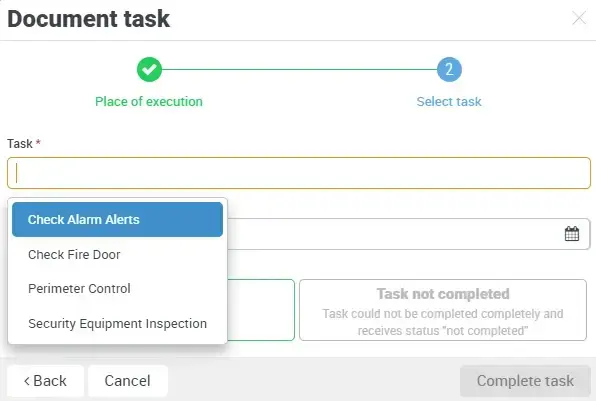
The Due time field shows the current time. If the task was completed earlier, enter the correct time. A time in the future is not possible.
Then choose the status:
- Task completed: the task was carried out in full.
- Task not completed: the task could not be completed in full and receives the status not completed. Under Reason, choose Emergency, No time, Not found or Others. Add details under Notes.
Click Complete task. The completion appears in the Task completion list.
Step 4: Fill out the form (tasks with a form only)
If a form is linked to the task and you chose Task completed, the Fill out the form step follows. Fill in the fields and choose:
- Complete task: the task is completed and the form is saved.
- Cache: your input is saved and the task receives the status started. You or a colleague can continue the input later.
If the Flexible forms module is not active, finish with Complete without form.
Good to know
- A completion from the portal counts just like a completion in the app. Notification rules and reports take it into account as well.
- How your employees complete tasks on the move is described in Complete tasks in the app.
- Use Filter to find completed tasks quickly, for example by Status or Find form field value. See Use filters.
FAQ
The task I need is missing from the list.
The list only shows tasks for the selected site. Use Back to return to the first step and choose the site the task is assigned to. Check the assignment under Master data and Tasks.
I cannot see the Document task button.
You do not have the Manage permission for Task completion. Please contact your administrator.
Why do I have to give a reason for not completed?
The reason shows why a task was missed, for example for the customer or in reports. That is why the Reason field is mandatory.
Can I finish a cached form later?
Yes. The task is listed with the status started in Task completion. You need the Manage permission for Task completion to continue.