Help Center › Tasks, events and forms › Reuse forms that have already been filled out
Reuse form data: allow employees in the app to take over values and pictures from a previously completed form. Here is how to set it up in the portal.
Updated 25 Nov 2026 · Portal 9.34 · Flexible forms · 3 min
In this article
- Why reusing form data saves time
- Allowing reuse for a form
- What is taken over and what is not
Many forms look almost the same every day. In a vehicle check only the mileage and date change, in a maintenance record only the result. If employees still have to fill out every field again, it costs time and leads to typing errors.
With transfer of form data, the employee starts in the app with the values of a previously completed form and only changes what is different. You decide in the portal, per form, whether this is allowed.
Prerequisites
- The form has already been created, see Create a form.
- Your role may manage Flexible forms.
Step 1: Open the form
Click Flexible forms in the main menu. The list shows all forms with Name, Description, Tasks, Incident types and Assignments. Click the form you want to enable.
You create a new form with Create form. The dialog only asks for Name and Assignments. You set up reuse afterwards as described below.
Step 2: Allow transfer
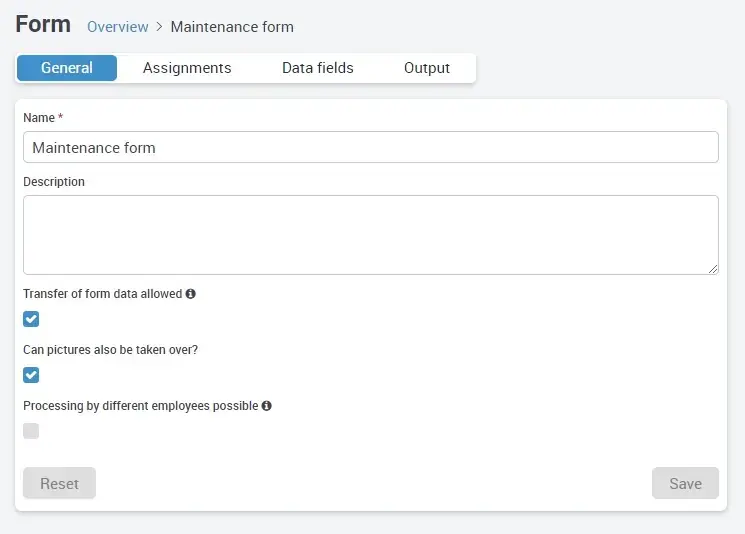
The form opens on the General tab. Below Name and Description there are three checkboxes:
- Transfer of form data allowed: employees in the app may take over the input from a previously completed form.
- Can pictures also be taken over? Tick this if photos should be included too. Without it, only the field values are taken over.
- Processing by different employees possible: this is a different feature. A form that has been saved in between can then be completed by a colleague, for example at a shift change.
Click Save. As long as you have not changed anything, the button is greyed out. Use Reset to discard your changes.
Step 3: Use it in the app
From now on, the employee can fall back on a previously completed form when filling out this form in the app. The fields are pre-filled, the employee only adjusts the changed values and completes the form. How this looks in the app is described in Use incidents with forms in the app.
Good to know
- Signatures are never taken over. A signature field has to be signed again every time.
- The setting applies per form. Forms with sensitive information are better left without transfer.
- Check transferred values before completing the form. Pre-filled fields make it tempting to accept information unchecked.
FAQ
Can I allow only pictures to be taken over, without field values?
No. Pictures are an addition to the transfer of form data. You can allow either field values only, or field values together with pictures.
Why can I not save?
The Save button only becomes active once you have changed a checkbox or a field. Otherwise the hint on the button says No change available.
What is the difference from processing by different employees?
With transfer, a new form starts with old values. With processing by different employees, the same form that was saved in between is finished by another employee.