Help Center › Reports and analytics › Share a self-created dashboard with other users
Share your own dashboard in the COREDINATE portal with employees or groups, change who can see it or set it back to private. Includes notes on user rights.
Updated 25 Nov 2026 · Portal 9.34 · Dashboard · 4 min
In this article
- Share a dashboard with employees or groups
- Change the sharing or set the dashboard back to private
- What shared users can see and do
As a site manager or operations lead, you may want to give colleagues targeted information. A guard could, for example, see the open tasks for their site and a button to report an incident.
Instead of setting up widgets for each colleague individually, you build a dashboard once and share it. Any later changes to the dashboard are visible to everyone it is shared with.
Prerequisites
- You have created your own dashboard. See Create, edit and manage a flexible dashboard.
- The colleagues you want to share with are set up as users and can log in to the portal.
- You can only share dashboards you are allowed to edit. The system dashboard Standard cannot be shared.
Step 1: Open Visibilities
Open the dashboard you want to share. Click Visibilities in the top right.
The window shows the dashboard's Owner. If it has not been shared yet, it reads This dashboard is not shared. Click Determine assignment.
Step 2: Select employees or groups
The Determine assignment window has two tabs:
- Employees: tick individual people. The list shows Last name, First name and Personnel number and can be searched.
- Groups: select branch offices, customers or sites. All employees who belong to that assignment can then see the dashboard.
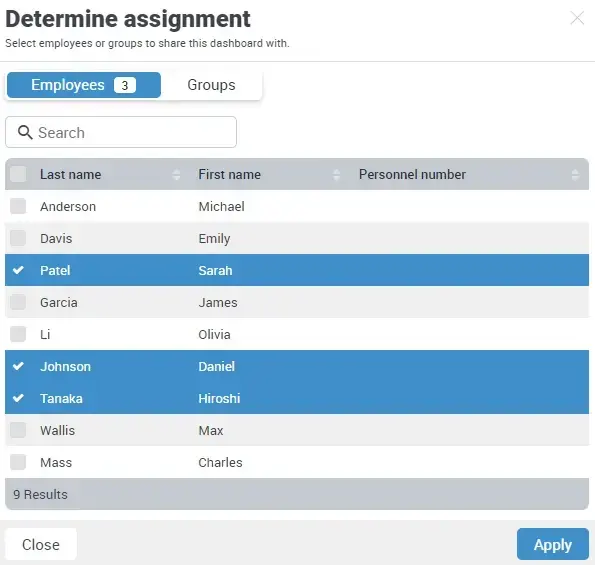
Click Apply. Close leaves the window without changes.
Shared colleagues find the dashboard in the dashboard selection in the top left under Dashboards assigned to me. In your overview under Manage, it appears on the Shared tab and is marked with an eye.
Step 3: Change the sharing or set it to private
To add more people or remove individuals, open Visibilities again and then Determine assignment. Tick or untick people and click Apply.
If nobody but you should see the dashboard any more, click Set to private under Visibilities and confirm the prompt. The dashboard is then no longer shared and only the owner can see it.
Good to know
- User rights still apply. Tables and statistics only show shared users the data they are allowed to see with their own rights and assignments.
- The exception is widgets that explicitly work without extra rights, such as Report incident, Documenting the task and the Memos widgets. See Widgets for the dashboard.
- Some widgets offer the option Ignore user rights for shared dashboards. Shared users then see the widget's data regardless of their rights. Use this deliberately so that no sensitive data is exposed.
- If you delete a shared dashboard, it also disappears for every user it was shared with.
FAQ
Why does my colleague see no data in the shared dashboard?
Most widgets follow the viewer's rights and assignments. Check that your colleague is assigned to the right branch office, customer or site and has the necessary rights.
Can I share a dashboard with a whole site?
Yes. On the Groups tab, select the customer or site. All employees with that assignment then see the dashboard.
How do I withdraw sharing for everyone at once?
Click Set to private under Visibilities and confirm the prompt.
Why can't I see the Visibilities button?
It only appears on dashboards you are allowed to edit. It is missing on the system dashboard Standard, for example.