Help Center › Getting started › Create your first site
A site is a subunit of a customer, for example a plant or a warehouse. How to create it in the portal and add its address afterwards.
Updated 25 Nov 2026 · Portal 9.34 · Getting started · 3 min
In this article
- How branch, customer and site relate to each other
- Where to find Create site and what the dialog asks for
- How to add the site's address afterwards
A site is the place where work will be done. Checkpoints, tours, tasks and devices always belong to a site. So without a site you cannot set anything up for the customer yet.
The structure has three levels: a branch contains customers, and a customer contains sites. If your customer is Smith Ltd, for example, then Berlin plant or Warehouse 5 are suitable sites. Usually one site is created per plant, building or location.
Prerequisites
- You are logged in to the portal and allowed to create sites.
- The customer already exists. If not, create it first: Create your first customer.
Step 1: Open the customer page and switch to the Sites tab
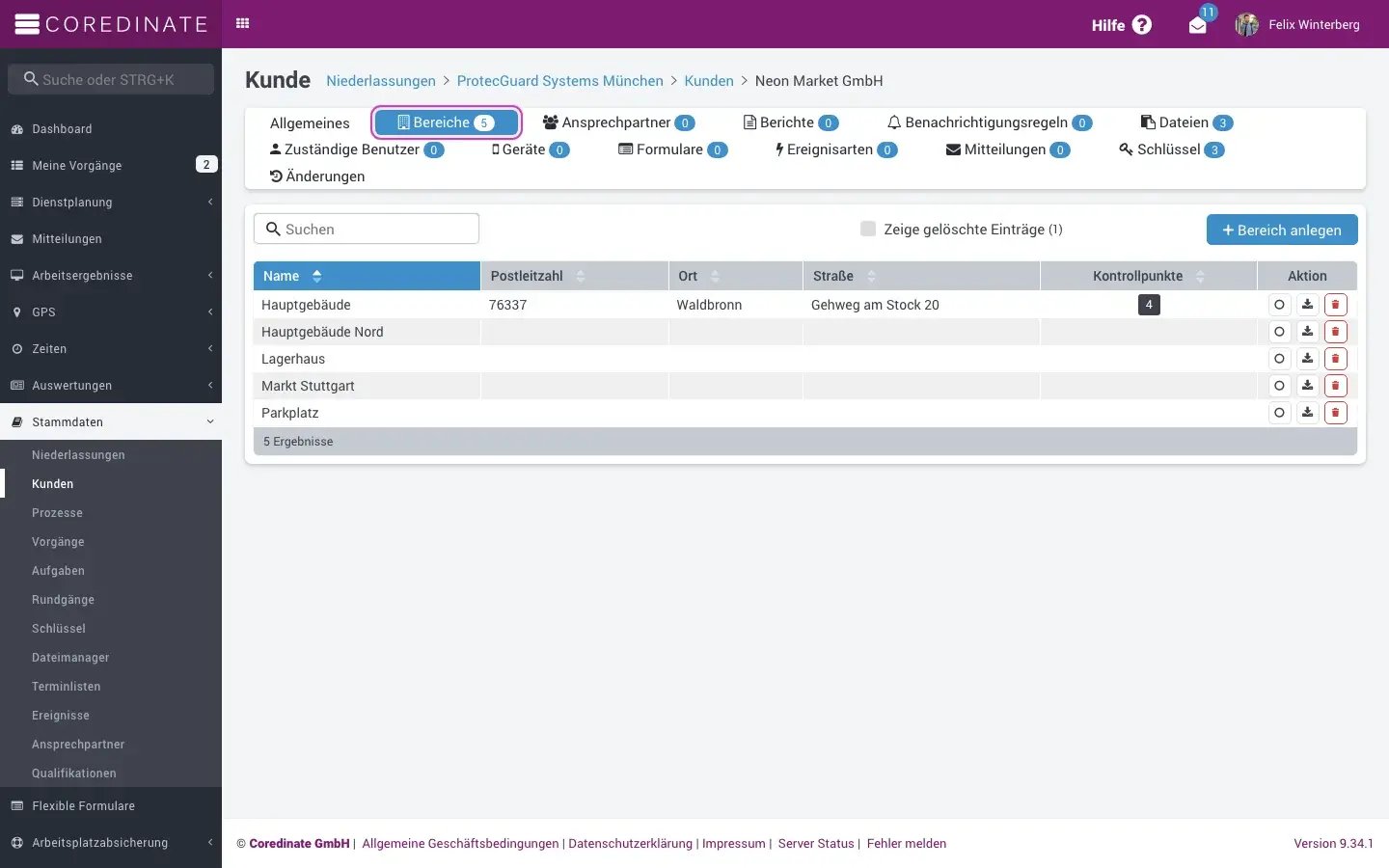
In the main menu, open Master data and then Customers. Click the customer you want. You now see the customer page with several tabs.
Switch to the Sites tab. The number next to it shows how many sites the customer already has. The list shows the name, postal code, city, street and number of checkpoints for each site.
Step 2: Create the site
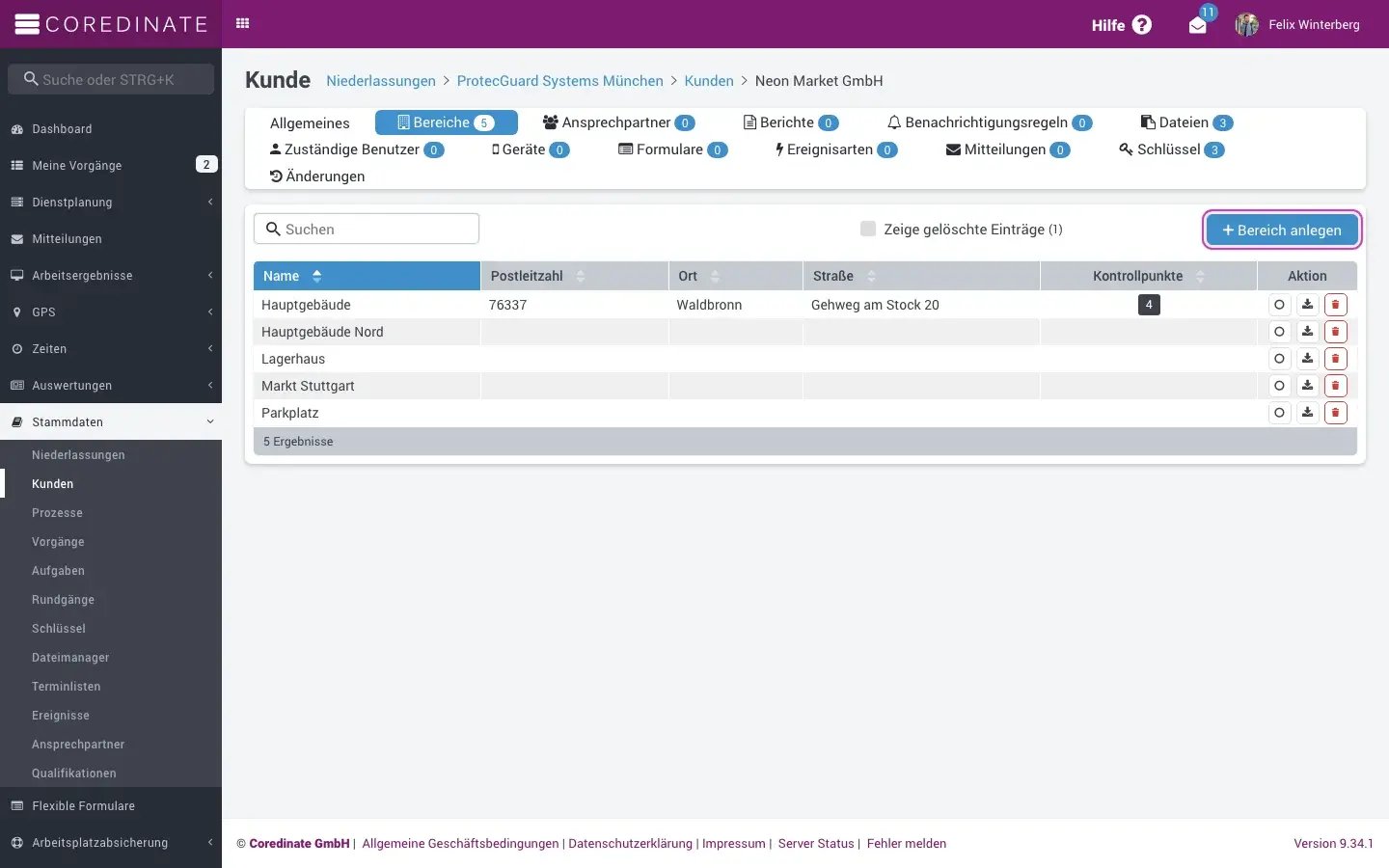
Click Create site at the top right.
A small dialog opens with just one mandatory field. Under Name, enter the name of the site, for example Berlin plant. Then click Create. Cancel closes the dialog without making changes.
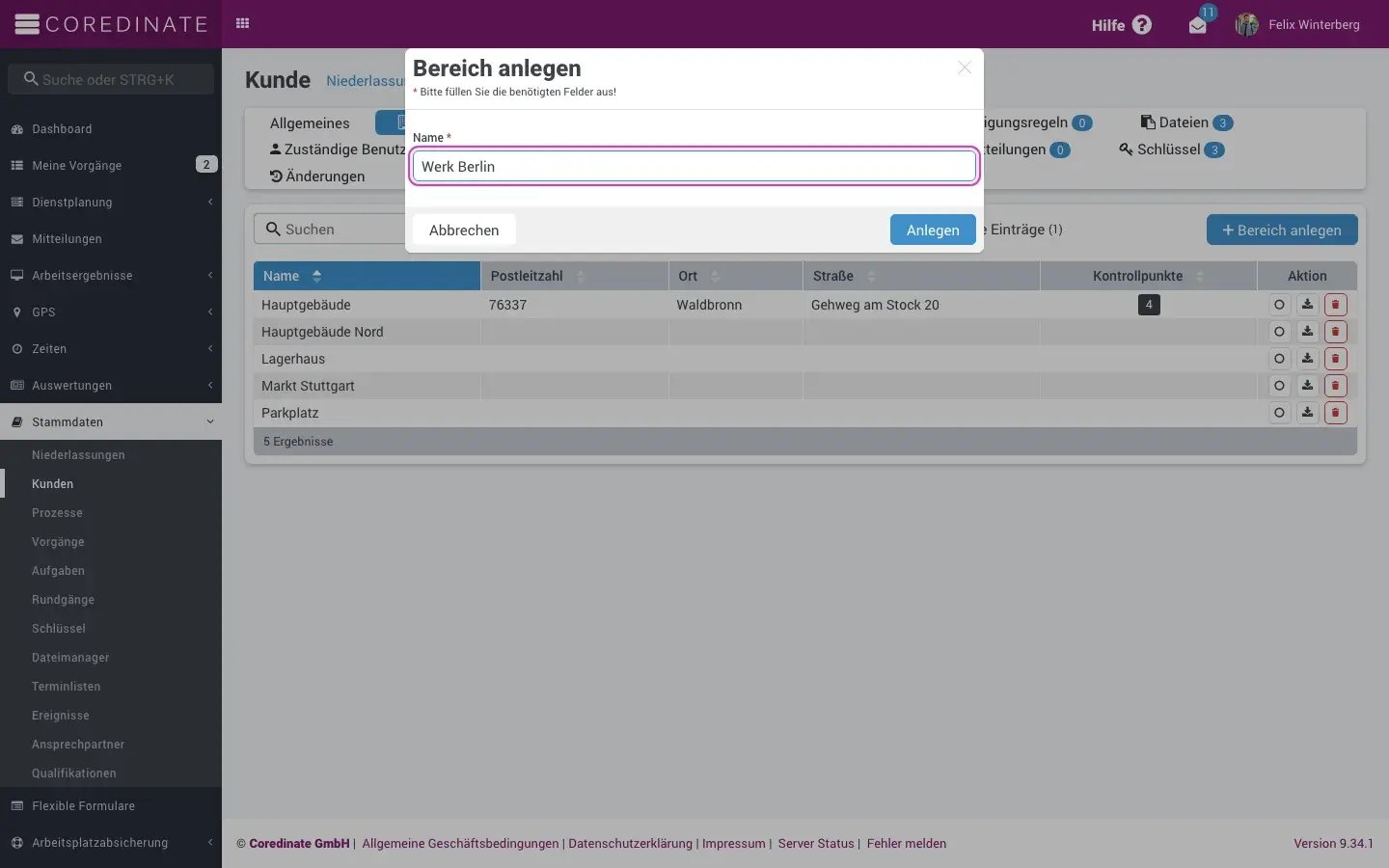
Tip: Choose names your employees recognise immediately. The name appears later in tours, reports and the app.
Step 3: Add the address
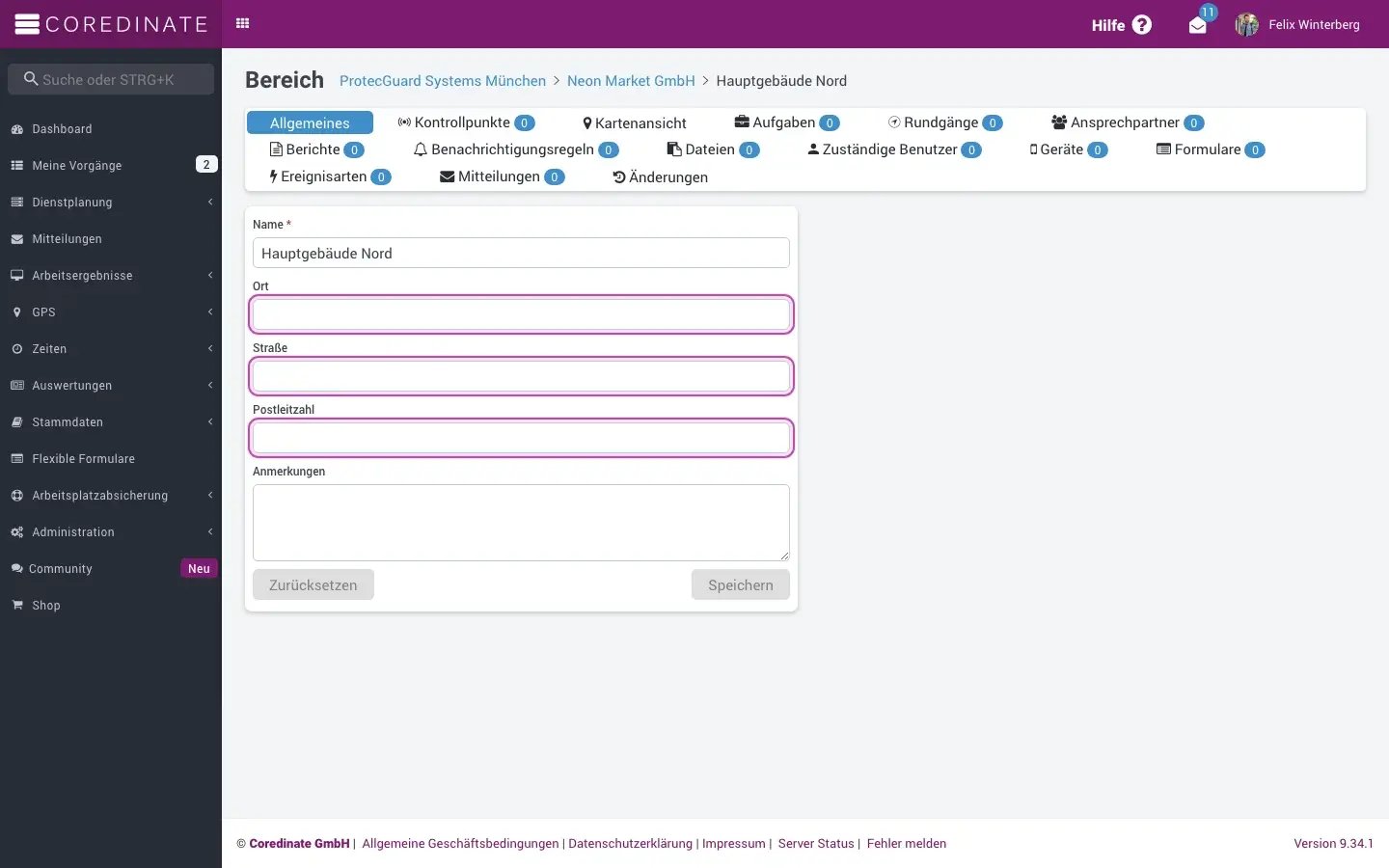
The create dialog does not ask for an address. You add it afterwards: in the site list, click the name of the new site. On the General tab you find the fields City, Street, Postal Code (ZIP) and Notes.
Fill in the fields and click Save. Reset discards your entries. The address then also appears in the customer's site list.
What's next?
The new site has further tabs, for example Checkpoints, Tours and Responsible Users. These steps logically come next:
FAQ
How many sites does a customer need?
At least one. You can create as many as you like, for example one per plant or building.
Where do I enter the address?
Not in the create dialog but afterwards in the site's detail view, on the General tab.
Can I change the name later?
Yes. Open the site, change the Name field on the General tab and click Save.
I cannot find the Create site button.
Check that you are on the customer's Sites tab. The button only appears there. If you still cannot see it, you probably lack the necessary rights.