Help Center › Administration and security › Move a licence to another device
Device broken or lost? How to move your COREDINATE licence to a new device yourself in the portal, even at night or at the weekend.
Updated 25 Nov 2026 · Portal 9.34 · Administration and security · 4 min
In this article
- When to move a licence
- Preparing the new device
- Moving the licence in the portal
- What to bear in mind afterwards
A COREDINATE licence is tied to one device. If that device fails, your employee needs a replacement immediately, often at night or at the weekend when support cannot be reached. That is why you can move the licence to another device yourself. Add-on modules booked on the licence move with it.
Important: Billing is based on activated devices. For this reason, after a move you cannot move the licence back yourself for 14 days. In exceptional cases, for example after a repair, support can help.
Prerequisites
- You are logged in to the portal with administrator rights.
- The new device has logged in to the app once and is therefore in the device list. It has no licence yet.
Step 1: Register the new device
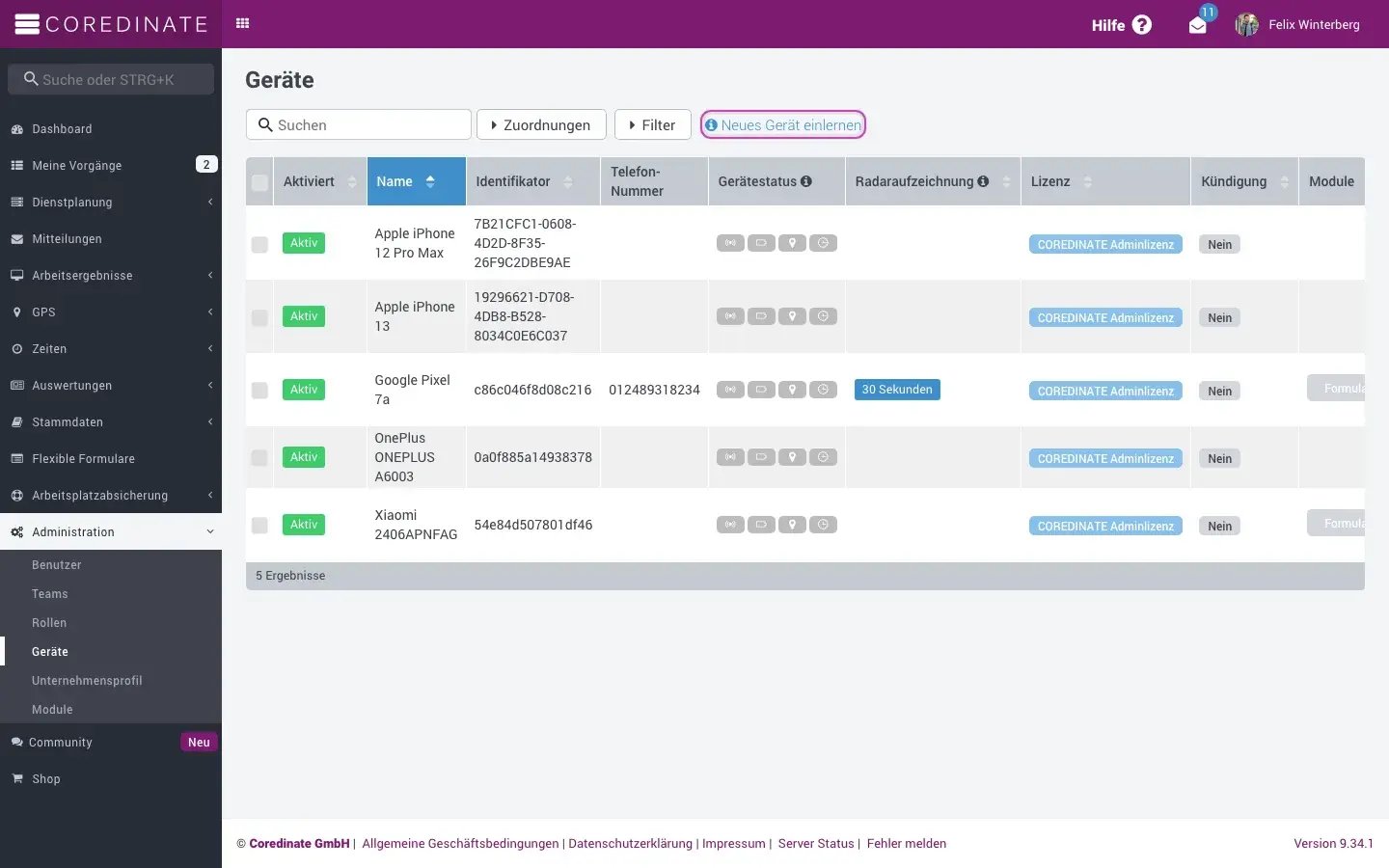
Install the app on the new device and log in. COREDINATE then knows the device. Alternatively, use the Register new device link above the device list in the portal.
Step 2: Move the licence
Open Administration and then Devices. The list shows all devices with Name, Identification, Licence, Termination, Modules and Assignments. In the Action column on the far right there are four icons: Move license (the first one, blue), GPS active, Disable device and Delete. If the icon is not visible, zoom out in your browser.
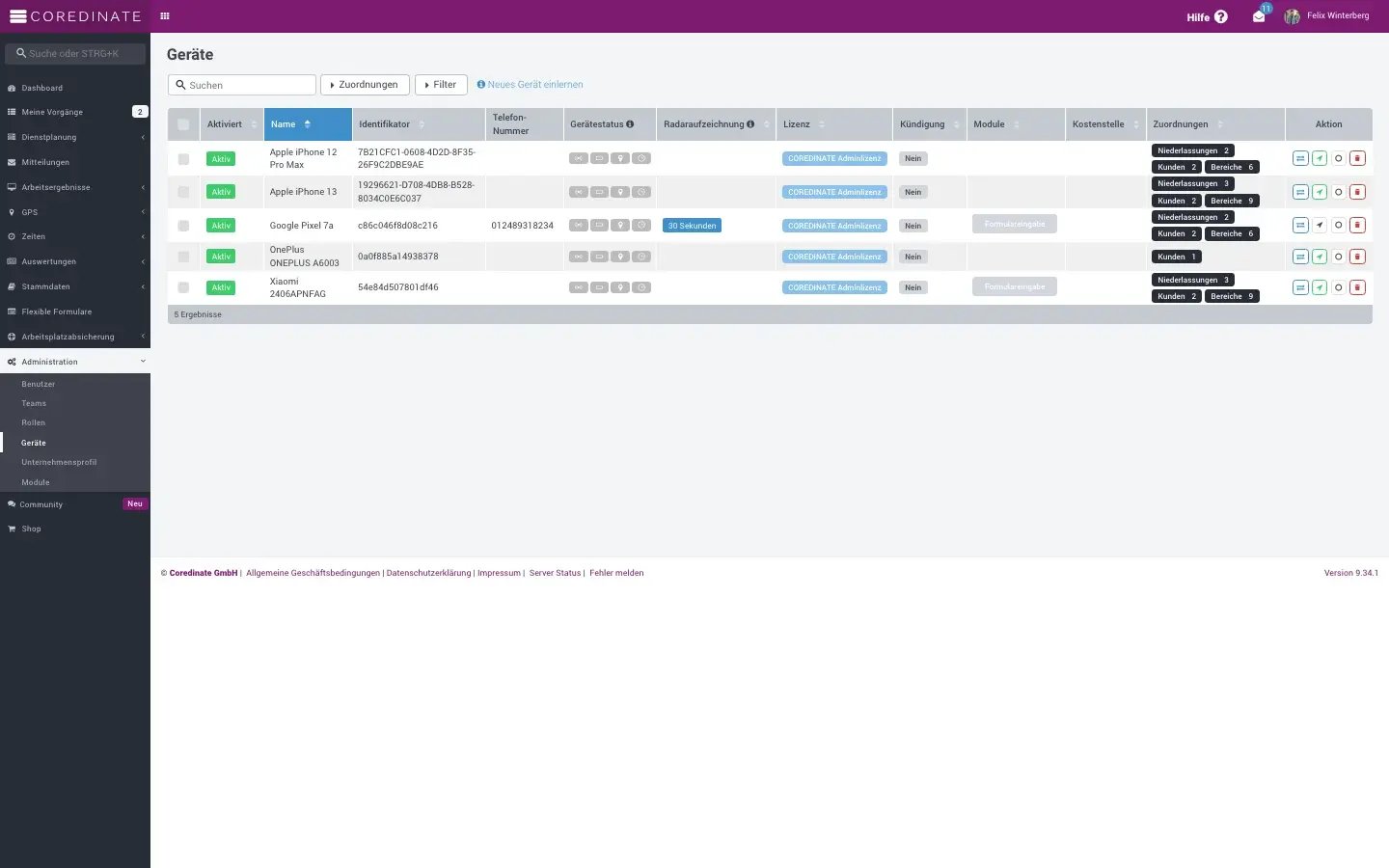
On the device the licence should be moved away from, click Move license. The portal then only shows devices without a licence. Select the new device as the target and confirm. A warning appears before anything happens. After you click Confirm, the licence and its add-on modules are on the new device and can be used immediately. The old device is marked as locked.
If the move is not possible
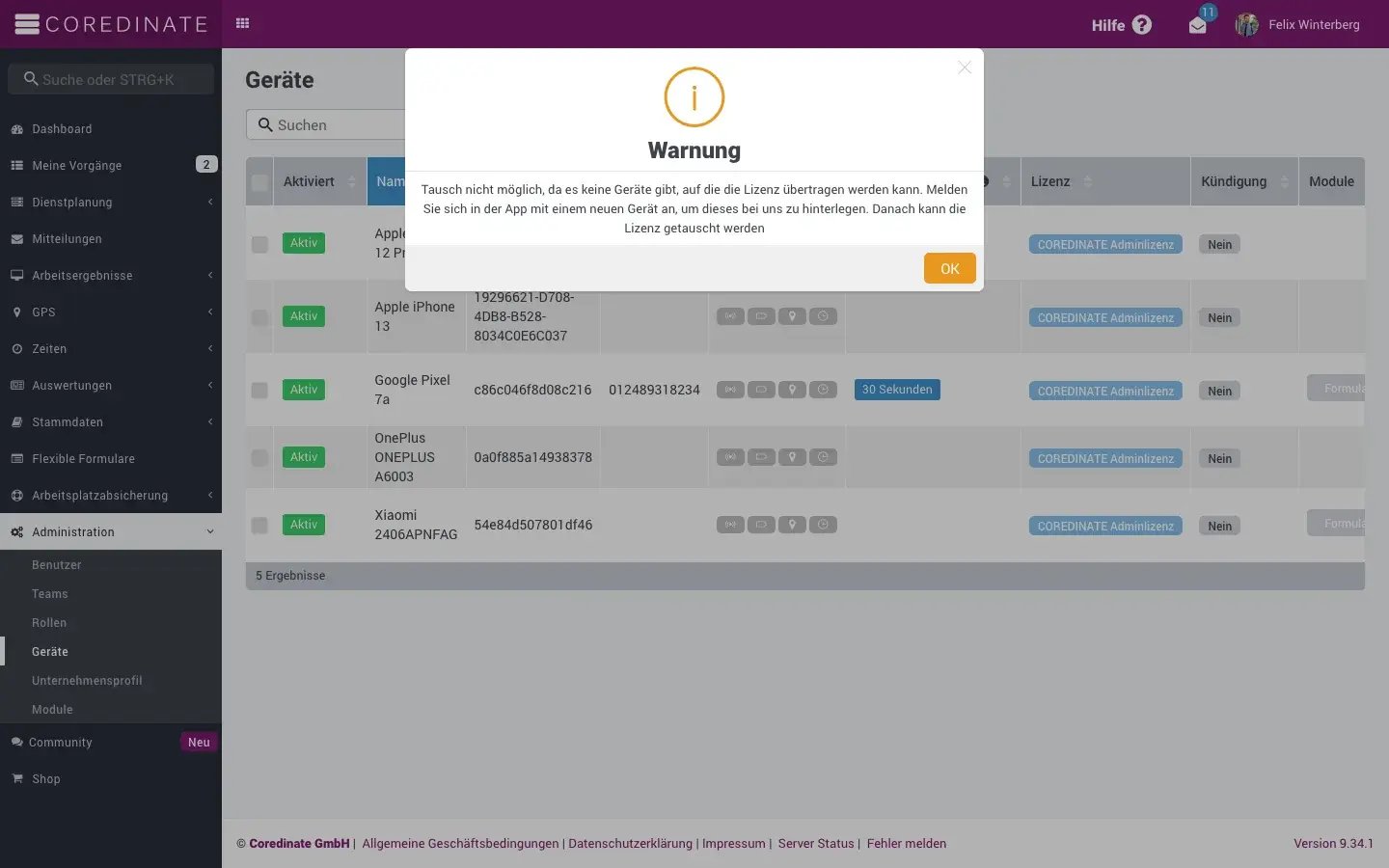
If there is no device without a licence, the portal shows this warning: No swap possible, as there are no devices to which the license can be transferred. Log in to the app with the new device so that it is registered. The swap will then work.
Good to know
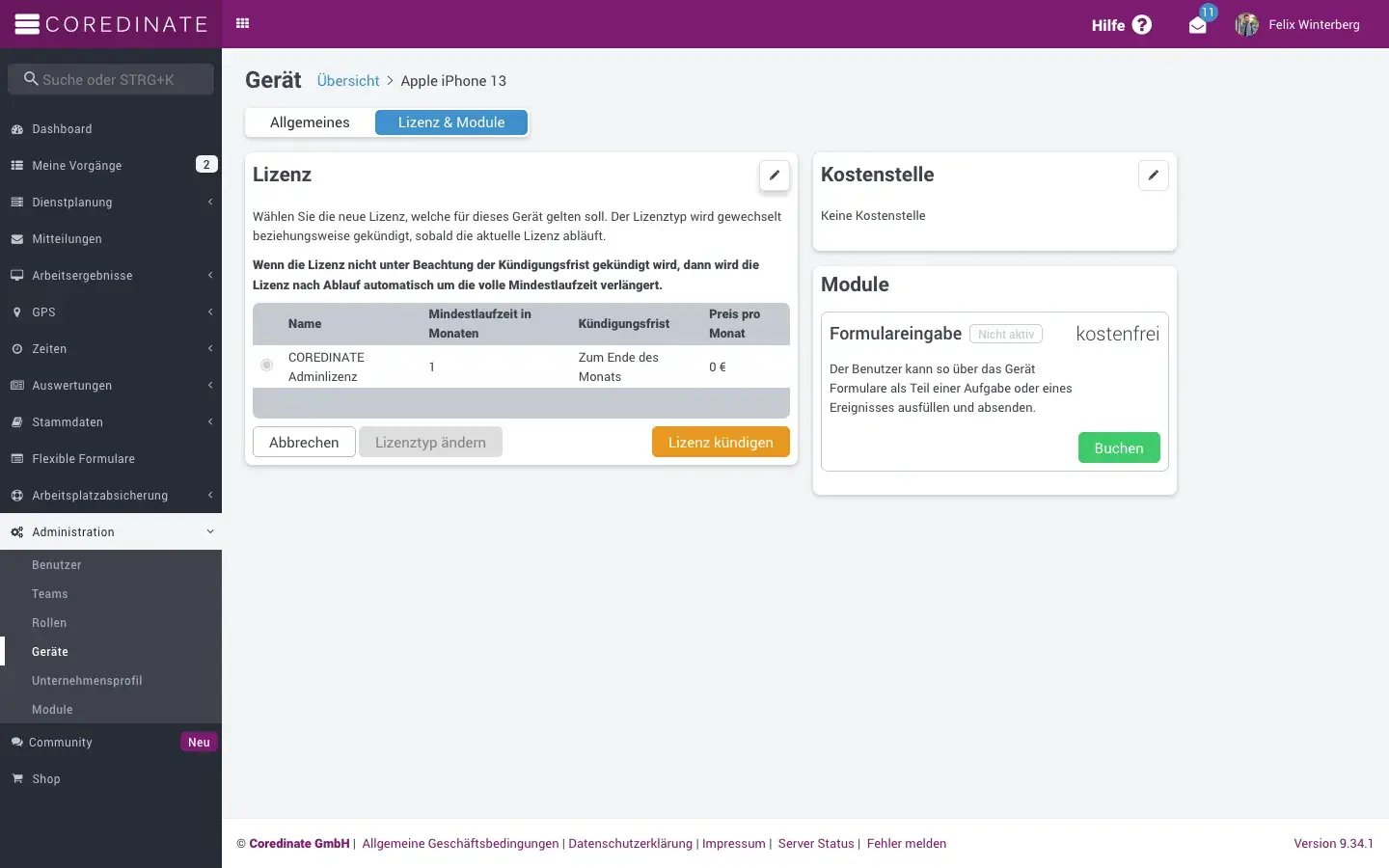
- On a device's detail page, the Licence & Modules tab shows the name, start and expiry of the licence. This is also where you change the licence type or cancel the licence.
- If a licence is not cancelled in time, it renews for the full minimum term when it expires.
FAQ
The new device is not offered as a target.
Check two things: does the device still have a licence? Then it is not offered. Has the licence already been moved once? Then the 14-day period applies, even if there is no licence on the device.
I need to move the licence back immediately.
That is only possible through support. Support can also move the licence back before the 14 days are up, for example after a repair.
Do the booked modules move too?
Yes. The licence and all add-on modules booked on it move to the new device.
What happens to the old device?
It is marked as locked and can no longer use the licence.