Help Center › Patrols and checkpoints › Replace checkpoints
A checkpoint is broken, lost or has moved? How to remove it in the portal, create a replacement and add it back to the tour.
Updated 25 Nov 2026 · Portal 9.34 · Tours and checkpoints · 4 min
In this article
- When a replacement is needed and what happens
- Removing the old checkpoint
- Creating a replacement: GPS point, geofence or NFC tag
- Adding the new checkpoint back to the tour
You replace a checkpoint when an NFC tag is lost or damaged, a location moves or the requirements for a point change. There is no dedicated button for this in the portal. You remove the old checkpoint, create a new one and add it back to the tour. The four steps below show this in order.
A checkpoint can be a GPS point, a geofence (an area) or an NFC tag. You can tell the type in the list by the icon in front of the name: a pin for a GPS point, a map icon for a geofence, a radio icon for an NFC tag.
Prerequisites
- You are logged in to the portal and allowed to manage checkpoints.
- The checkpoint belongs to a site.
- You know which tours the old checkpoint is used in. If in doubt, open the tours concerned and check the Route point tab.
Step 1: Open the site's checkpoints
In the main menu, open Master data and then Customers. Select the customer and, on the Sites tab, the site you want. Switch to the Checkpoints tab there.
For each checkpoint the list shows Type, Name, Tag-ID, Functions and Tasks. Use the search field to find a point quickly.
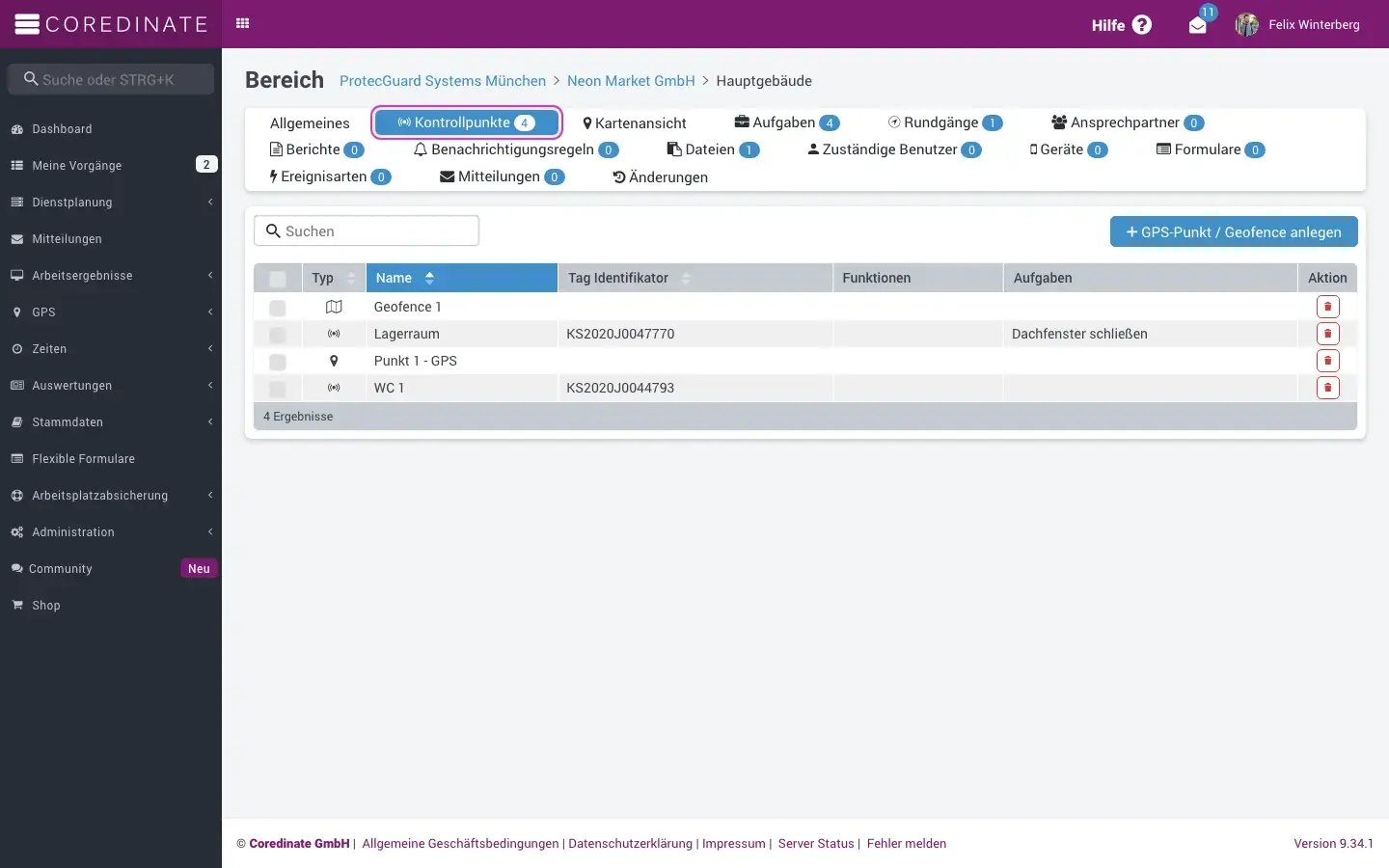
Step 2: Remove the old checkpoint
In the checkpoint's row, click the red bin icon on the right. Alternatively, click the name. The detail view then opens on the right, with the Delete button at the top.
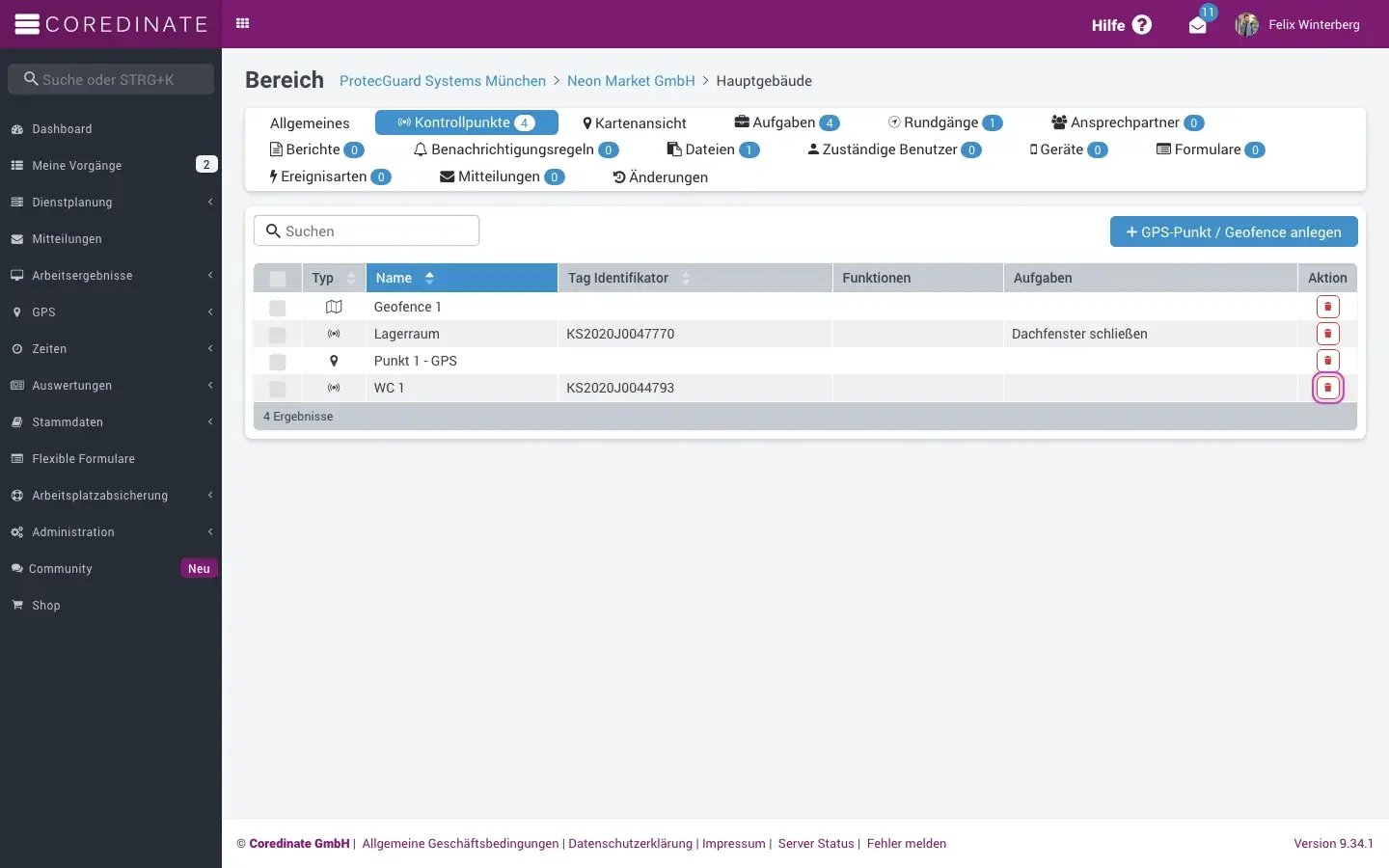
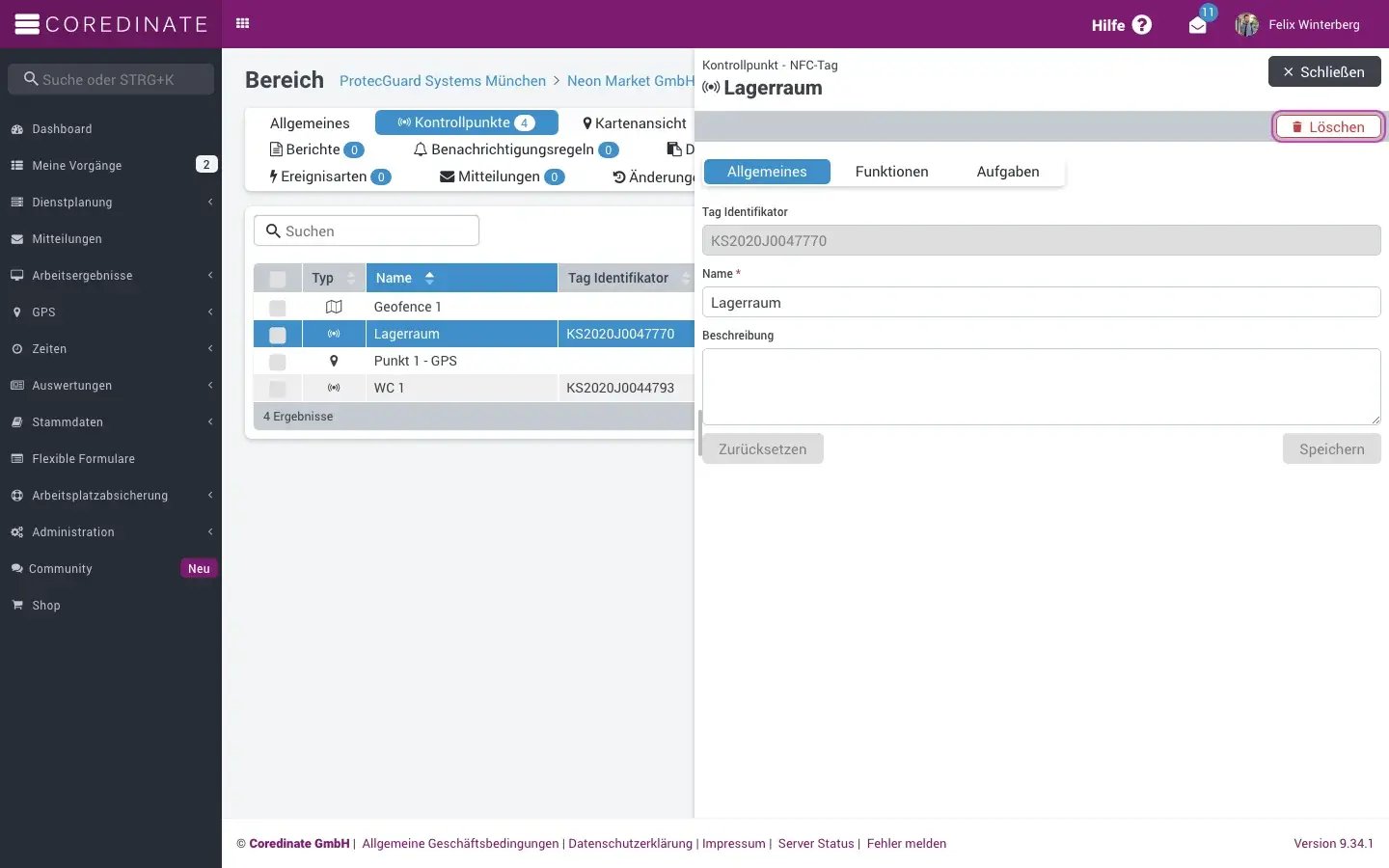
Caution: A checkpoint can be used in several tours. Check beforehand where it is used so that no gap is left there.
Step 3: Create a replacement
How you create the new checkpoint depends on its type.
GPS point or geofence
Click Create GPS point / geofence. The portal switches to the Map view, because you create these points directly on the map. Use Create GPS point to click a spot, or Create a geofence to draw an area. Enter a Name and save.
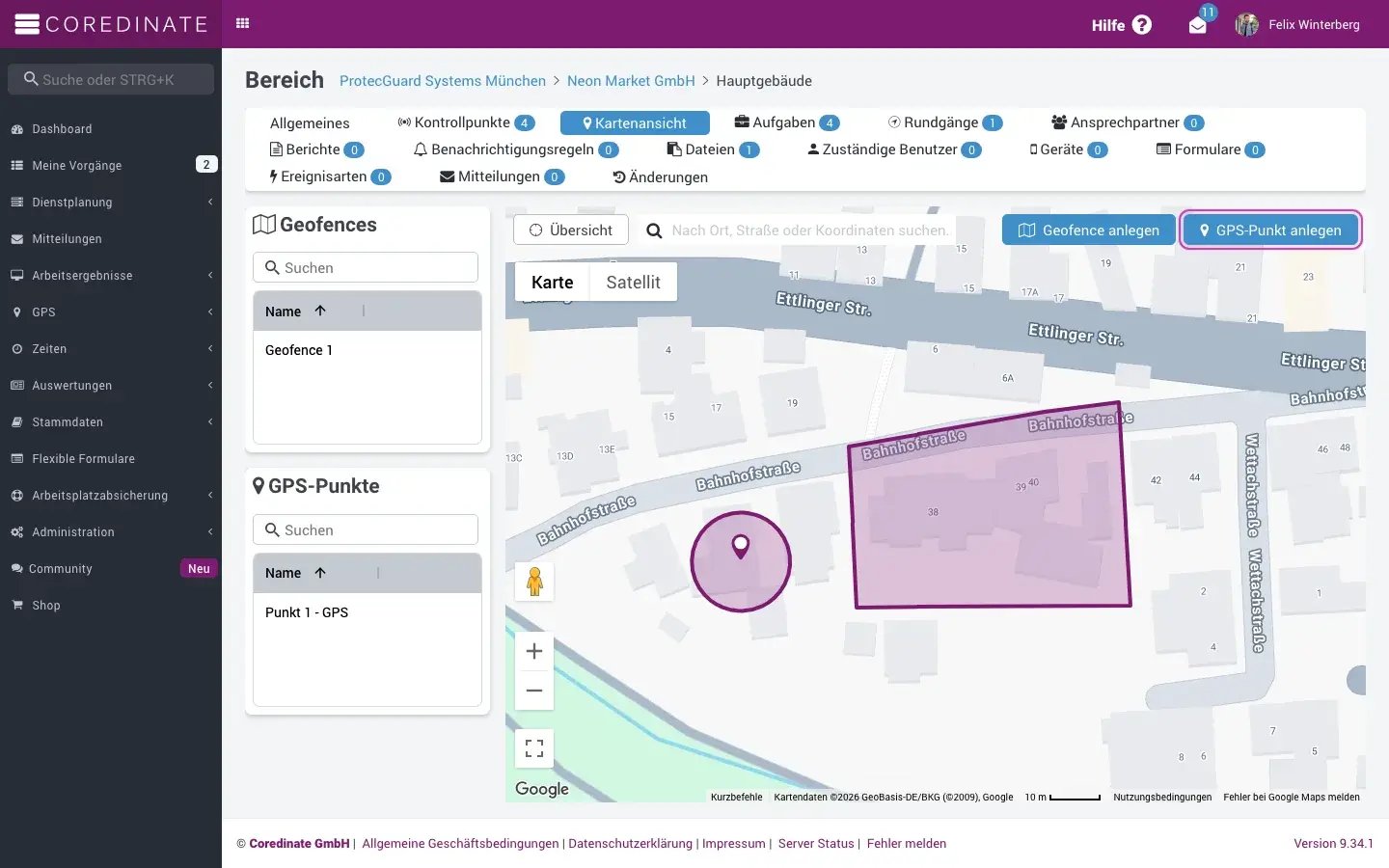
All settings for areas, radius and functions are explained in Create GPS checkpoints (geofences).
NFC tag
You do not create NFC tags in the portal. Attach the new tag on site and register it with the app. How this works is explained in Register checkpoints. The tag then appears in the list with its Tag-ID.
Step 4: Add the checkpoint back to the tour
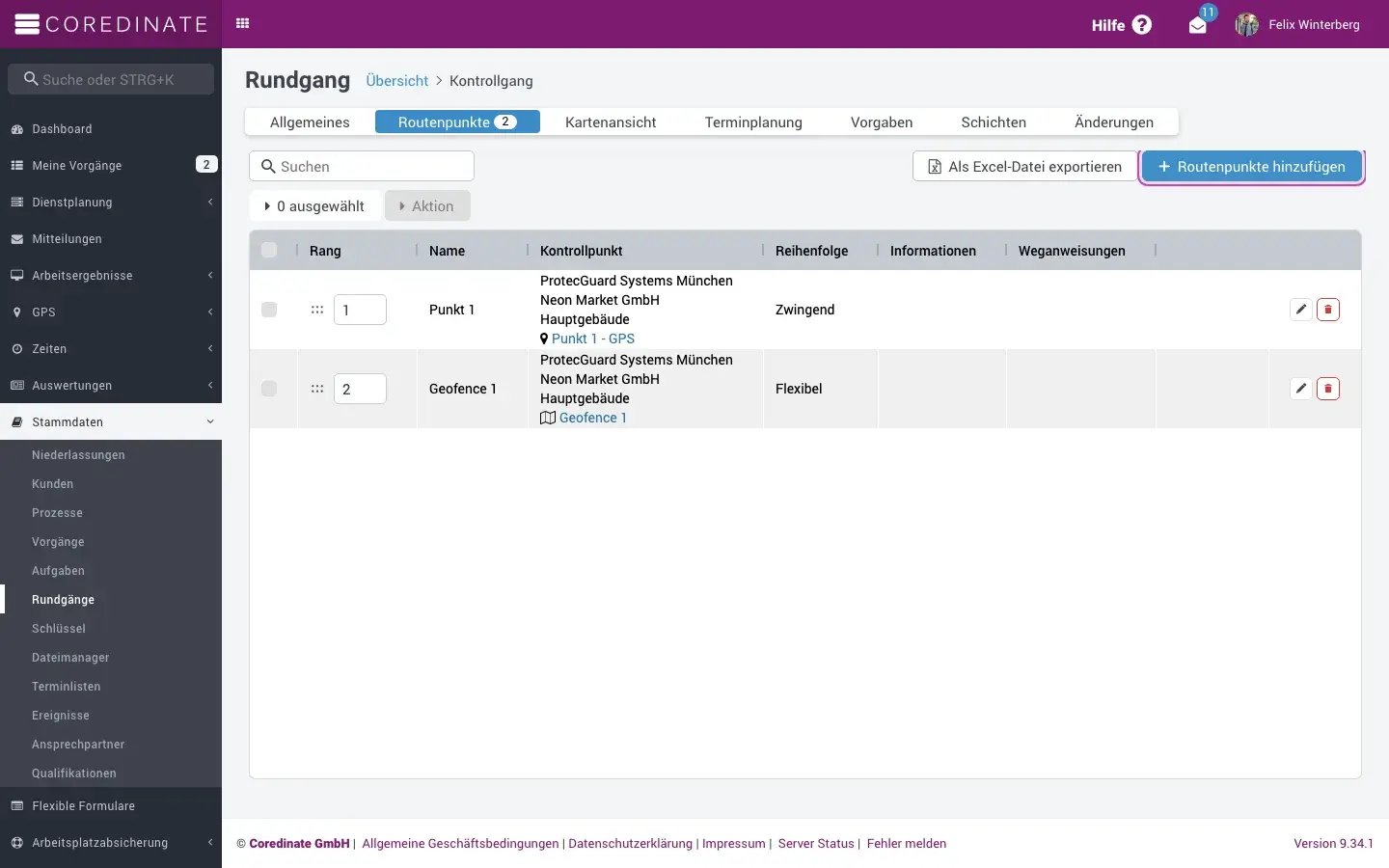
Open Master data, then Tours and the tour concerned. Switch to the Route point tab. Here you see the order (Rank), the name, the site and the type of each point: Mandatory or Flexible.
Click Add route points.
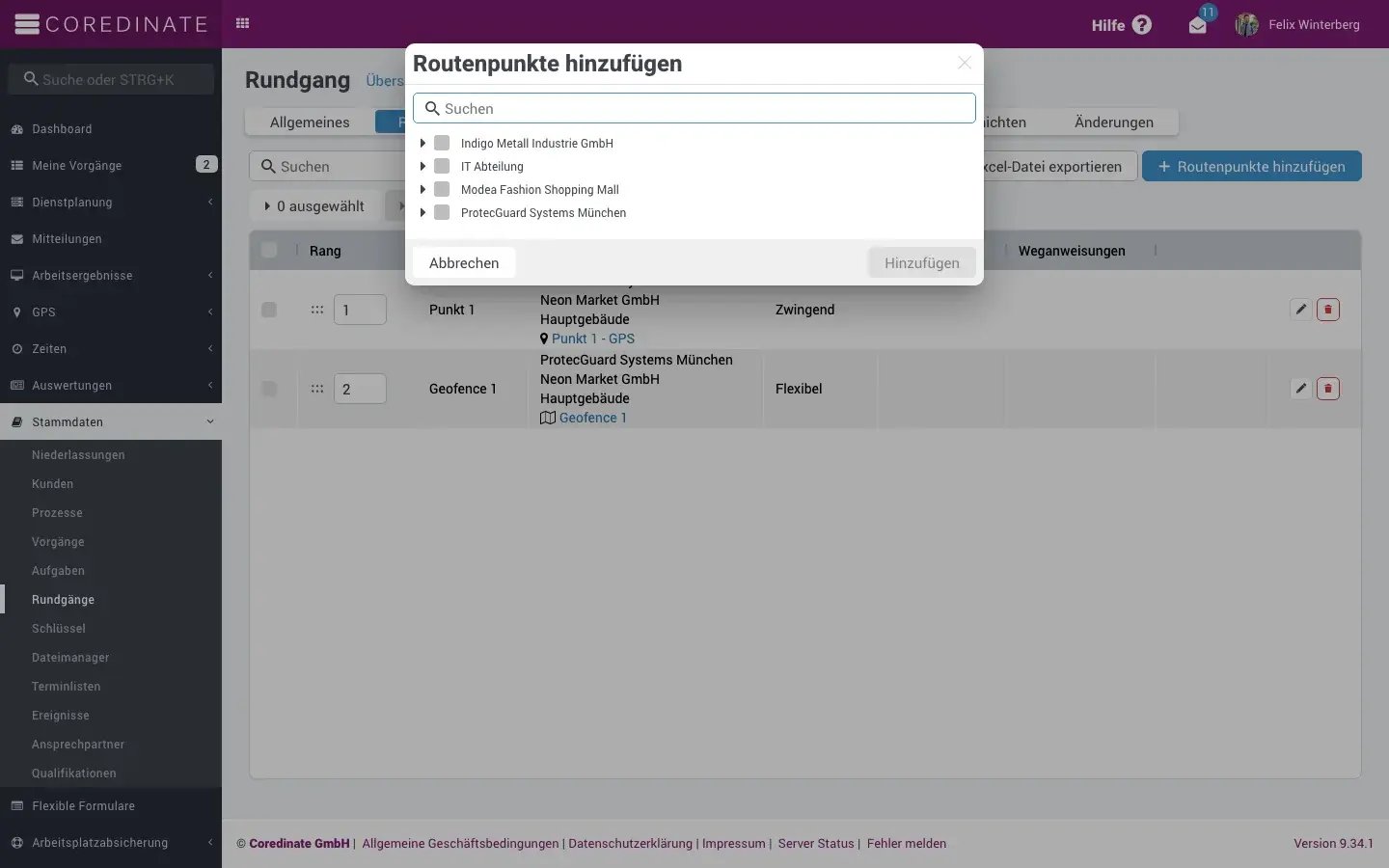
Expand the customer and site, tick the new checkpoint and click Add. Use the Rank field to move it to the right position in the order, and the pencil icon to set whether it is mandatory or flexible.
Good to know
- Mandatory route points must be scanned for the tour to count as complete. Flexible points are optional.
- A checkpoint may be used in several tours. So add the replacement to every tour concerned.
- The app receives the new checkpoint automatically at the next synchronisation.
FAQ
I cannot find a button to create an NFC tag.
There is none in the portal. NFC tags are registered with the app. See Register checkpoints.
The Create GPS point / geofence button only opens the map.
That is correct. GPS points and geofences are created in the map view. That is where the Create GPS point and Create a geofence buttons are.
Can I simply rename a checkpoint instead of replacing it?
Yes. Click the name in the list, change the Name on the General tab and click Save. The Tag-ID of an NFC tag remains unchanged.
Where can I see which tours a checkpoint is used in?
Open the tours under Master data and check the Route point tab of each.