Help Center › Administration and security › Set password complexity
Set password rules for your company: length, capital letters, numbers, special characters and the automatic block after failed attempts.
Updated 25 Nov 2026 · Portal 9.34 · Administration and security · 3 min
In this article
- Setting password rules for all users
- Understanding the block after failed attempts
- Unblocking a blocked user
You decide how secure your employees' passwords must be. The rules apply to all users in your company, in the portal and in the app. In addition there is an automatic block if someone enters the wrong password several times.
Prerequisites
- You are logged in to the portal with administrator rights.
Step 1: Open Security
In the main menu, open Administration and then Company profile. Switch to the Security tab.
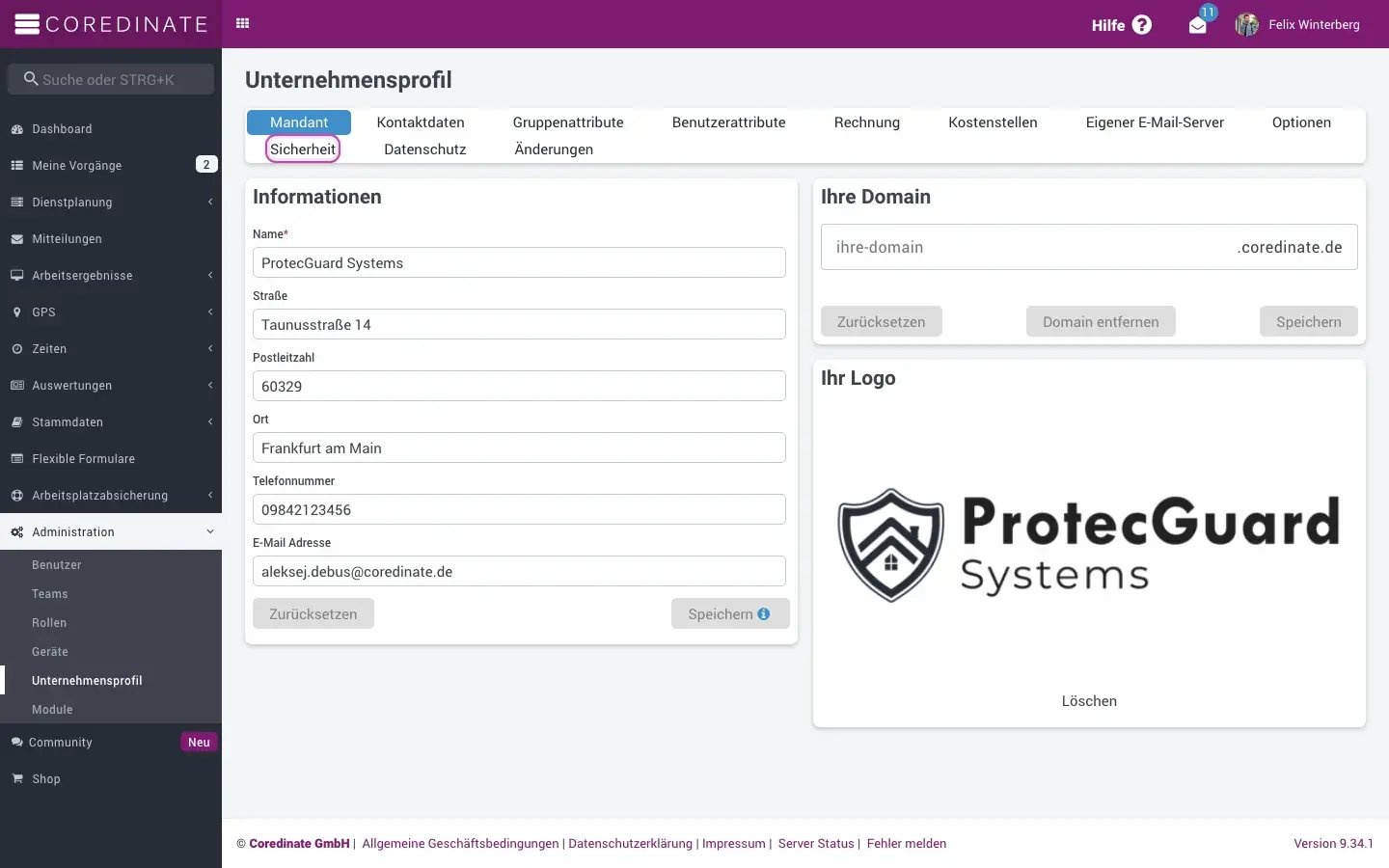
Step 2: Set the password rules
In the Password complexity rules block you enter five numbers. All fields are mandatory:
- Minimum password length
- Minimum number of capital letters
- Minimum number of lower case letters
- Minimum Number of Numbers
- Minimum number of special characters
A 0 means that this type is not required. Click Save. Reset discards your changes.
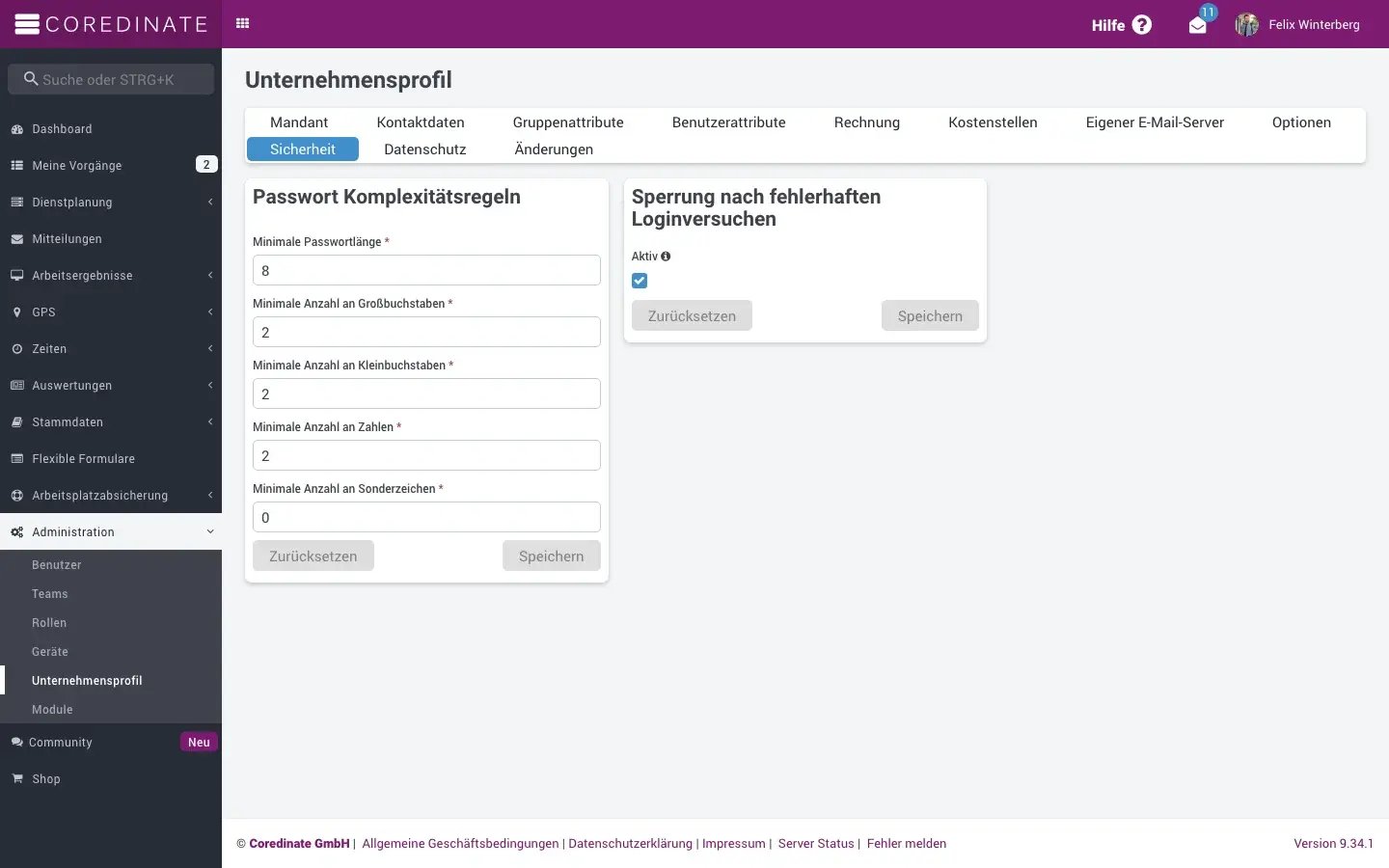
The rules apply as soon as a password is set, for example when creating a user.
Practical tip: Length matters more than special characters. A long password is more secure and easier for your people to remember. So set the minimum length higher rather than requiring lots of special characters. Rules that are too strict lead to passwords ending up on sticky notes.
Step 3: Block after failed attempts
Next to it is the Blocked after incorrect login attempts block. If Active is ticked, an employee's login is blocked after 6 failed attempts. An authorised user then unblocks it in the user settings. Click Save after making a change.
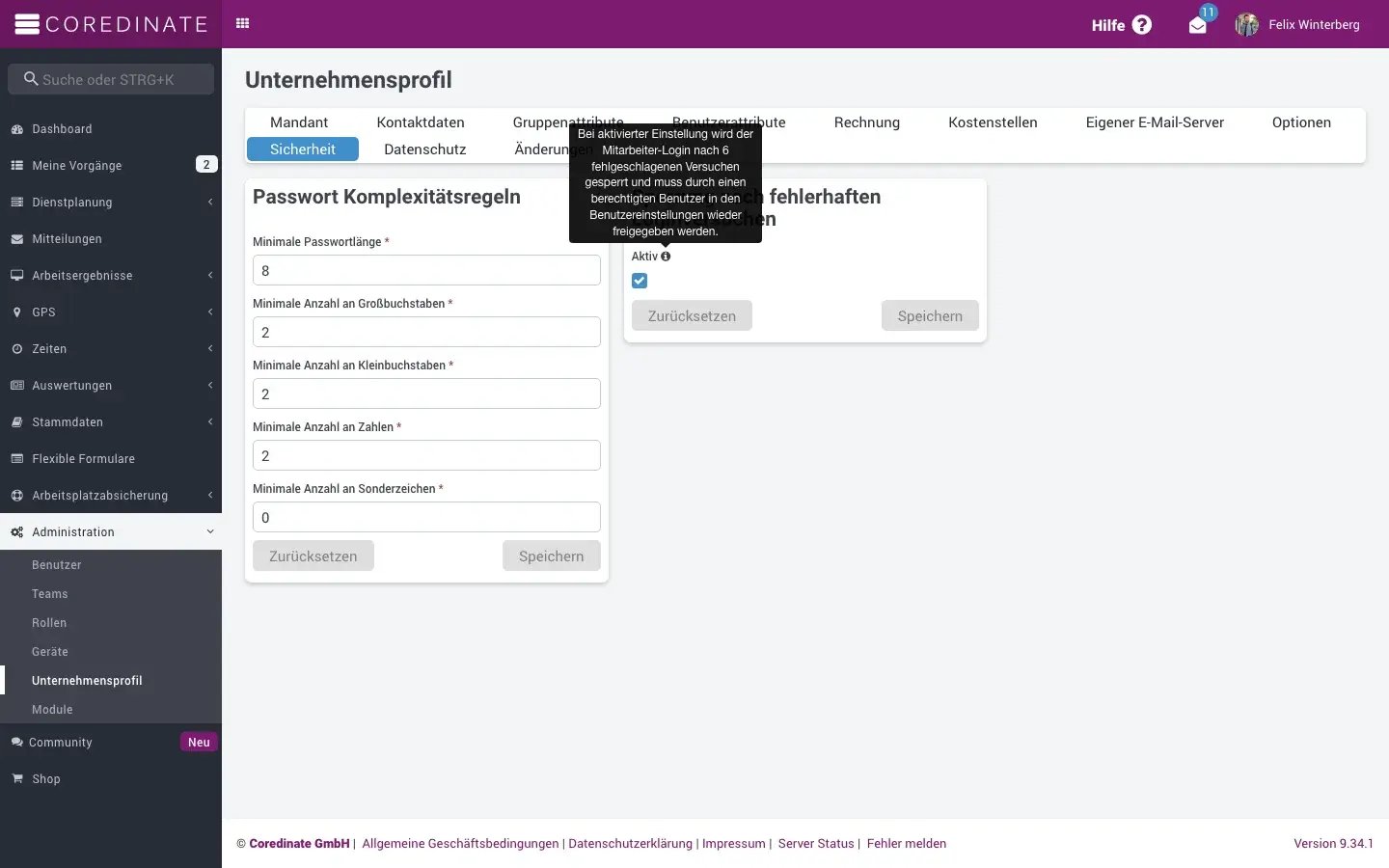
Good to know
- The settings apply to your whole company, not to individual branches.
FAQ
An employee is blocked. What should I do?
Open the Users under Administration and unblock the user in their settings. You need the appropriate permission for this.
Do new rules also apply to passwords that have already been set?
The rules check a password when it is set. To be on the safe side, have employees set a new password.
Can I switch the block off?
Yes. Untick Active and save. For security reasons we recommend leaving it switched on.
What happens with a password that is too weak?
If it does not meet the rules, it cannot be saved. When creating a user, you see this immediately in the dialog.